---
title: "How to Print Pay Stubs: Complete PDFs and Readable Copies"
description: "Print complete pay stubs without clipped figures or missing pages. Check PDF source files, paper size, scaling, page ranges, phone printing and privacy."
url: "https://blog.checkstubsonline.com/print-pay-stubs"
datePublished: "2026-11-21"
---
# How to Print Pay Stubs: Complete PDFs and Readable Copies
Print complete pay stubs without clipped figures or missing pages. Check PDF source files, paper size, scaling, page ranges, phone printing and privacy.
Published: 2026-11-21
By [Check Stubs Online Editorial Team](https://blog.checkstubsonline.com/editorial-policy#editorial-team)
**To print a pay stub, open the complete statement supplied by the employer or authorized issuer, check every page in print preview, and choose settings that keep all fields readable.** Print the statement file rather than only the portal’s summary screen. Confirm the requested pay dates, page range, paper size, copies and output before sharing. A printed copy preserves a record; printing does not authenticate its contents or guarantee acceptance.
Reviewed November 21, 2026 · Practical PDF and paper-copy guidance. Menu names depend on the viewer, device, printer and employer portal. Numerical examples below are invented; the recipient decides which document format it accepts.
A missing right-hand column or an accidentally selected “current page” can turn a genuine complete statement into an incomplete printout. Solve the printing problem at its source. Retyping earnings into a new document or enlarging a cropped screenshot can introduce a separate records problem.
If you cannot access the original statement, start with our [electronic pay-stub access guide](https://blog.checkstubsonline.com/electronic-pay-stubs-access). For an ADP account, use the separate [official ADP access instructions](https://blog.checkstubsonline.com/adp-pay-stubs-official-access) and the employer’s support route. The steps here begin after you have the file you are entitled to obtain.
## In this guide
1. [Open the complete statement file](#print-source)
2. [Print from a computer](#print-desktop)
3. [Choose paper and scaling carefully](#print-scale)
4. [Count pages and copies with a worked example](#print-pages)
5. [Print from a phone or another device](#print-phone)
6. [Troubleshoot missing or unreadable output](#print-problems)
7. [Keep the source and protect the copy](#print-share)
8. [Prepare a new statement only from authorized records](#print-maker)
9. [Printing pay-stub questions](#print-faq)
## Open the statement, not only the payroll dashboard
Select the employer and pay date in the issuer’s official account, then use its statement-view or download control. Check that the file identifies the person, covered period, payment date and relevant earnings and deductions. Some employers provide a PDF; others use a different supported format. Do not rename a file extension and assume that converts the document.
A dashboard tile may show only the deposit amount. A phone screenshot can omit a continuation page, employer details or deductions below the visible area. If the recipient asks for the employer’s PDF, submit that format rather than a screenshot simply because it is easier to print.
Preserve an unchanged source copy. Give your saved file a useful name based on the employer and actual pay date, without putting full account or Social Security numbers in the filename. Check that you have not downloaded the same statement twice under different automatic filenames.
## Print from a computer after reviewing the destination
1. **Open the file.** Inspect all pages in a trusted PDF viewer or the issuer’s supported viewing method.
2. **Open Print.** In Chrome on a computer, the usual shortcuts are Ctrl+P on Windows/Linux and Command+P on a Mac; a viewer’s own Print control can also be available.
3. **Choose the output.** Confirm the intended physical printer or a permitted file destination. An old printer name can remain selected from another job.
4. **Check the preview.** Review page range, page orientation, paper, scale and copy count.
5. **Inspect the first output.** If the page is clipped or unreadable, correct the setting before printing the rest.
[Google’s Chrome printing instructions](https://support.google.com/chrome/answer/1069693?hl=en&co=GENIE.Platform%3DDesktop) describe opening a page, image or file and choosing the destination and settings. A browser-generated PDF of an account webpage can differ from the payroll system’s original statement download. Keep that distinction clear when a reviewer asks for a particular issuer file.
## Match the paper and printable area before changing scale
A PDF page size and a printer’s printable area are different. Even matching paper can have nonprinting margins. Review the preview rather than assuming a 100% setting always produces the best complete copy.
[Adobe’s current page-sizing guidance](https://helpx.adobe.com/acrobat/desktop/print-documents/set-up-and-print-pdfs/page-size.html) distinguishes fitting a page, printing at actual size and shrinking oversized pages. In that viewer, actual size leaves the page unscaled, so parts outside the paper can be cropped. Fit can enlarge or reduce; shrinking oversized pages reduces large pages without enlarging small ones. Other software can use different labels.
**Print-setting decisions: inspect the result in the actual viewer**
| If you see this | Check first | Avoid this shortcut |
| --- | --- | --- |
| The right edge or bottom is missing | Paper size, orientation and whether the full page fits the printable area | Cropping away earnings or deduction columns |
| Everything is very small | Pages-per-sheet and scale settings | Sending a barely legible copy because the totals are technically present |
| Only one page appears | Page range and total pages in the source file | Assuming the visible first page is the full statement |
| A wide portal page prints badly | Whether the issuer offers its own downloadable statement | Rebuilding the document from selected screen text |
| Several statements appear twice | Selected files, copy count and duplicate downloads | Treating a second copy as a different payment |
For an original geometry example, assume a PDF uses 12-point text and you choose uniform 90% printing. The text’s printed size becomes 12 × 0.90 = 10.8 points. That setting changes the output size, not the wage amounts. Whether the result is readable depends on the original layout and actual printer. The example is not a recommended minimum text size or a universal best scale.
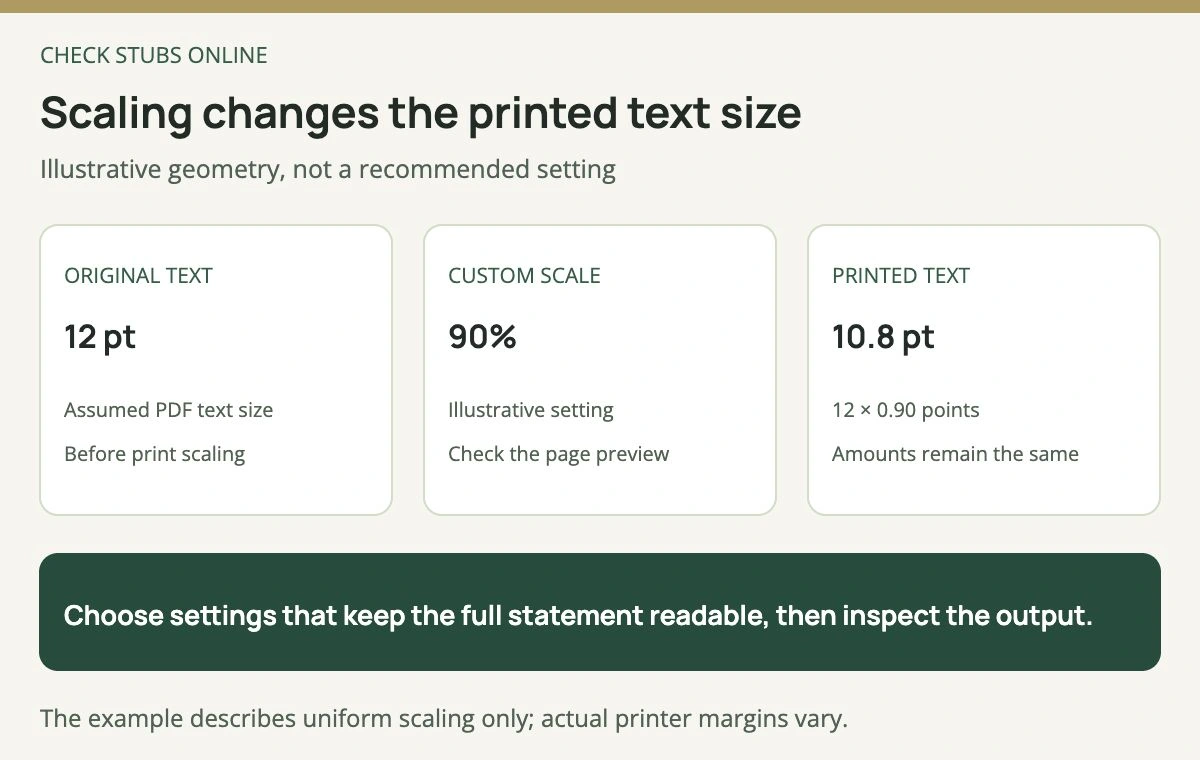
Check the printed copy at normal reading distance. If fitting makes it difficult to read, obtain an appropriate original layout or agree on another format.
## Count complete statements before you count copies
Suppose a fictional reviewer requests statements for November 6, 13 and 20, 2026. You have three unique files, containing two, one and two pages respectively. A complete set contains five pages. Printing only each file’s first page would produce three pages and omit two pages from the requested set.
**Original inventory for three fictional pay statements**
| Pay date | Pages in the original file | Pages included in one complete set |
| --- | --- | --- |
| November 6, 2026 | 2 | 2 |
| November 13, 2026 | 1 | 1 |
| November 20, 2026 | 2 | 2 |
| Total | 5 | 5 |
If two complete copies are needed, five pages × two sets gives ten printed page images. That calculation does not determine the number of physical sheets when duplex printing or separate jobs are involved. More copies also do not turn three payments into six payments.
After printing, compare the output to the source thumbnails: pay date, page order, continuation pages and any relevant explanatory page. Keep separate statements in their own order. If instructions require all pages, do not discard a page because it looks blank without checking what it contains and what the recipient requires.
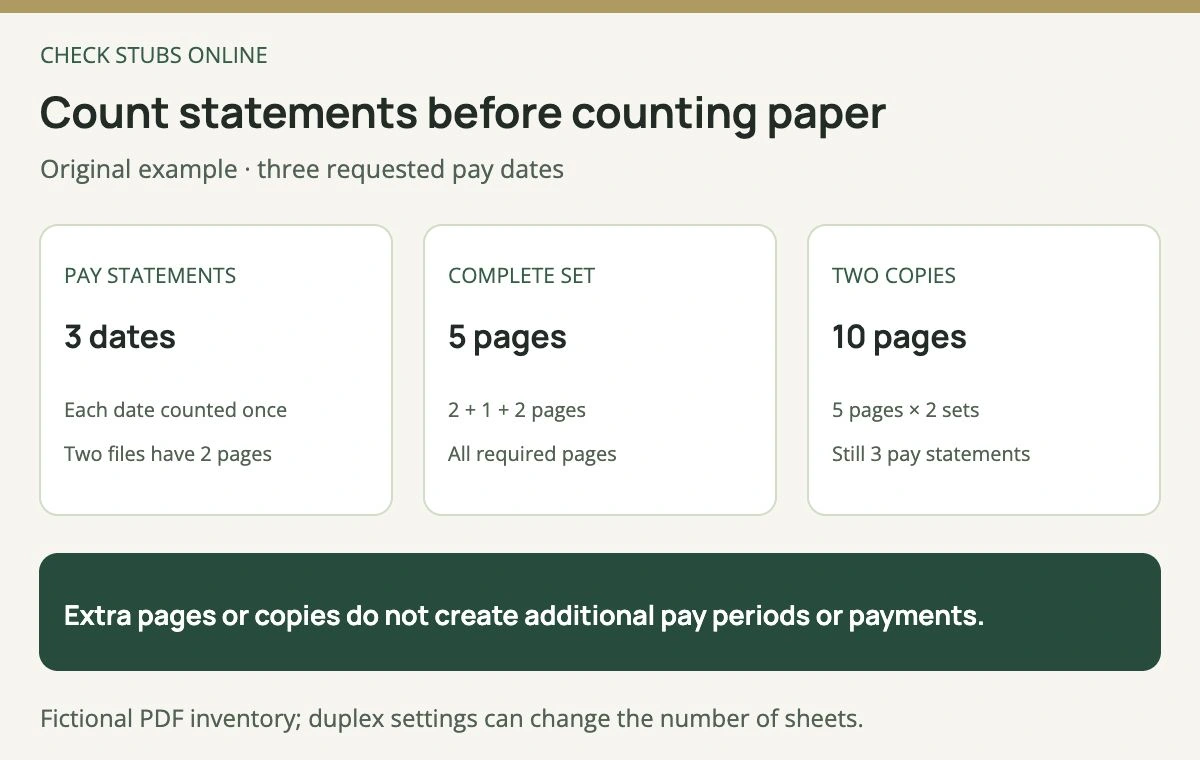
Count unique pay dates and document pages separately. Confirm whether the recipient requests a number of statements or a defined date window.
## On a phone, use the document’s supported print route
Open the full statement first, then use the viewer’s Share, actions or Print control. On an iPhone, [Apple’s printing guide](https://support.apple.com/en-lamr/guide/iphone/iph92628b8f/27/ios/27) describes using an AirPrint-capable printer on the same Wi-Fi network. The app’s available controls and the printer’s support still matter; not every screen or app exposes printing in the same place.
If no suitable printer is available, save the issuer’s complete file through a supported route and print it later from a device you control. Confirm the saved file opens before logging out. Avoid sending payroll credentials or private order links to a print shop or another person as a shortcut.
A recipient that accepts the original electronic file may not need paper at all. Confirm its upload instructions before printing, scanning and re-uploading a copy that could be less clear. Paper is a delivery choice, not a stronger verification method by itself.
## Fix the output problem without altering the payroll facts
**Blank pages or missing text:** reopen the original and compare another trusted supported viewer. Check whether the preview or the actual printer output is failing. If the original itself is incomplete, ask the issuer for a complete copy. Do not fill a missing amount from memory.
**Clipped numbers:** verify paper, margins, orientation and sizing. Check the first and last columns, including minus signs, decimal places and year-to-date totals. A lost minus sign can materially change what a reader thinks an entry means.
**Blurry scans or screenshots:** return to the issuer file when possible. Enlarging an image does not restore detail that was never captured. If the recipient requires a scan, make the permitted complete copy and inspect it for focus, glare and cut-off edges.
**Printing is restricted:** request an authorized printable copy or contact the issuer through its approved support channel. Do not remove document protection merely to force a print. If a public or workplace printer cannot handle the file, ask for a permitted alternative.
**Unfamiliar dates or amounts:** this is a content question, not a printer setting. Use our [pay-stub reading guide](https://blog.checkstubsonline.com/how-to-read-pay-stub) or request an issuer correction using the [payroll error workflow](https://blog.checkstubsonline.com/pay-stub-errors-correction).
## Keep the original and control where the copies go
Collect every page from a shared printer promptly and follow its authorized job-removal procedure when a job fails. Keep completed copies where unintended readers cannot access them. Do not leave the original download or an active payroll session on a shared computer.
If someone asks you to hide a private identifier, agree on the permitted fields and method first. Physical covering or drawing a box is not a reliable digital-redaction workflow. Follow our [pay-stub redaction guide](https://blog.checkstubsonline.com/redact-pay-stub-before-sharing), and retain the unmodified original separately. Never change earnings, dates or employer details to meet an application target.
## When preparing a new statement, inspect the completed PDF
If you are authorized to prepare a statement from actual payroll records, the [Check Stubs Online pay stub maker](https://www.checkstubsonline.com/pay-stub-maker) provides a preview before purchase and completed PDF downloads. Check its current template, entries and final output, then use the same page-completeness and printing checks described above.
A preview is not the completed issuer record. The maker does not fetch a former employer’s missing statements, independently verify income or promise that a printed copy will be accepted. Existing employer statements should come from that employer or its authorized record provider.
## Printing pay-stub questions
### Can I print in black and white?
Check the recipient’s requirements and ensure every label, figure and distinction remains readable. Color alone does not establish whether a record is genuine.
### Does printing at 90% reduce my pay figures?
No. Uniform print scaling changes physical size, not the numbers. It can make text harder to read, so inspect the actual output.
### Is one page always one pay stub?
No. A statement can have several pages, and a file can contain multiple statements. Identify unique pay dates and full page sets.
### Can a screenshot replace the original PDF?
Only if the recipient accepts it and it retains the necessary complete information. Do not assume a cropped screen satisfies an original-file request.
### Should I recreate a statement when its printout is unclear?
First obtain a clear complete copy from the issuer and troubleshoot the supported viewer and printer. Recreating an employer document introduces authority and accuracy issues that printing cannot resolve.
The Check Stubs Online Editorial Team reviewed the cited printer/viewer instructions and the maker’s current public workflow. The page inventory and scaling illustration were independently calculated for this guide.
## Relevant document tool
Prepare a PDF you can check before printing
For authorized statement preparation, use actual payroll details and inspect the complete preview and finished PDF before sharing copies.
[Explore the pay stub maker](https://www.checkstubsonline.com/pay-stub-maker)
Formatting and printing do not retrieve employer records, confirm payment or guarantee acceptance.
## Related guides
- [Pay Stub Errors: How to Request and Track a Correction](https://blog.checkstubsonline.com/pay-stub-errors-correction)
- [Can You Redact a Pay Stub? Privacy and Verification Checks](https://blog.checkstubsonline.com/redact-pay-stub-before-sharing)
- [ADP Pay Stubs: Official Access, Downloads and Employer Help](https://blog.checkstubsonline.com/adp-pay-stubs-official-access)